Evil Twin Wi-Fi Attacks: Prevention Checklist for Safe Connections
Evil twin attacks bypass standard Wi-Fi passwords by mimicking legitimate access points, making certificate verification the only reliable defense against credential theft.
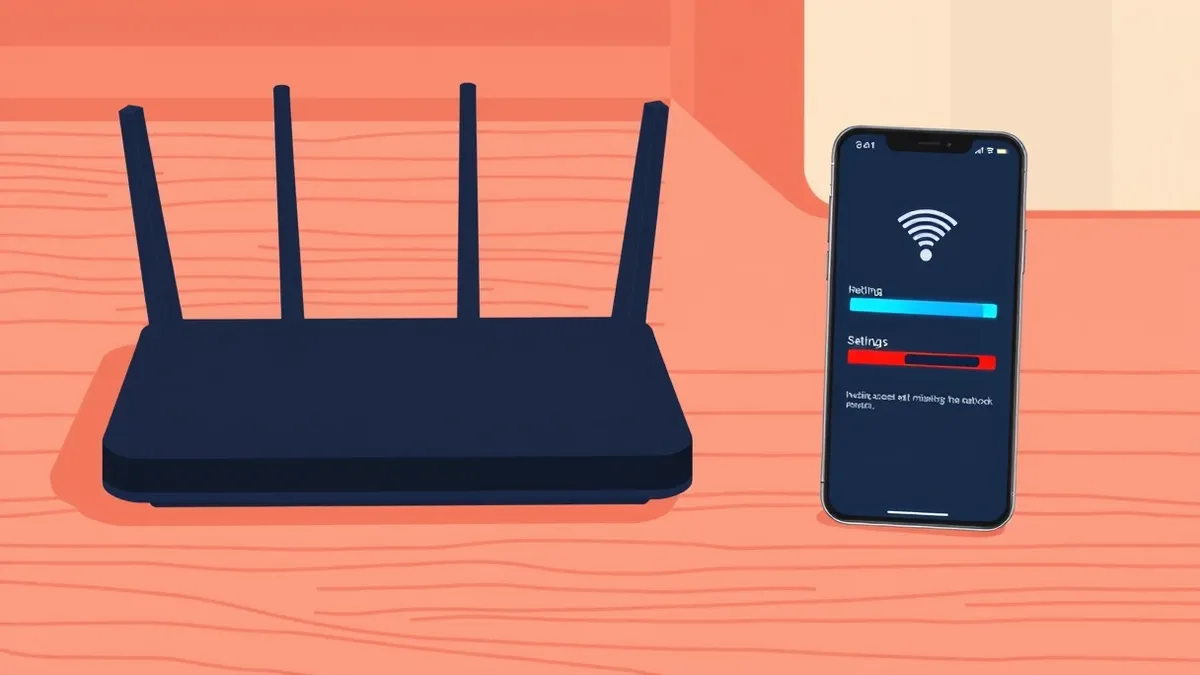
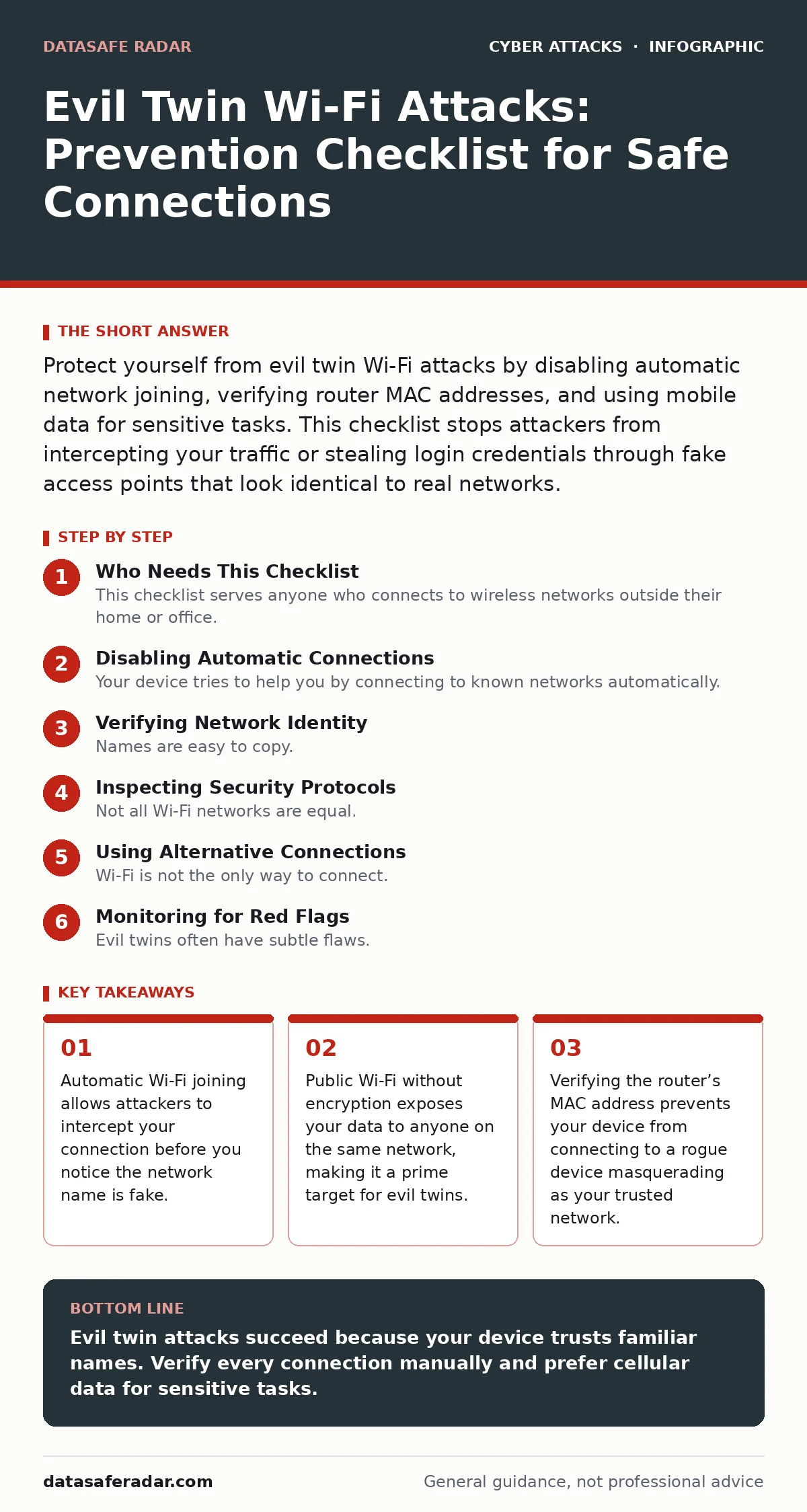
Protect yourself from evil twin Wi-Fi attacks by disabling automatic network joining, verifying router MAC addresses, and using mobile data for sensitive tasks. This checklist stops attackers from intercepting your traffic or stealing login credentials through fake access points that look identical to real networks.
Who Needs This Checklist
This checklist serves anyone who connects to wireless networks outside their home or office. You need it if you use cafes, airports, hotels, or corporate guest networks. Evil twin attacks work by broadcasting a Wi-Fi signal with the same name as a legitimate network. Your device often connects to the stronger signal automatically. That signal belongs to an attacker. They capture everything you send. This guide helps you spot the trap and close it. Use it before you connect to any new network.
Disabling Automatic Connections
Your device tries to help you by connecting to known networks automatically. This feature helps attackers. An evil twin broadcasts a strong signal with a familiar name. Your phone or laptop jumps to it without asking. You see a connected icon and assume you are safe. You are actually sending data to a stranger. Turn off automatic Wi-Fi joining. Configure your device to ask for permission every time it finds a network. This adds one step to your routine. It stops silent hijacking.
- Disable automatic Wi-Fi joining: prevents silent connection to rogue access points with familiar names.
- Forget saved public networks: removes stored credentials that attackers can exploit later.
- Enable network confirmation prompts: forces you to visually verify the network before connecting.
Verifying Network Identity
Names are easy to copy. MAC addresses are harder. Every network interface has a unique Media Access Control address. It is a hardware identifier. Legitimate routers have static MAC addresses. You can memorize the first few digits of your home or office router. When you see a network with the right name, check the MAC address. If it differs, it is a fake. This method works even if the attacker changes the network name slightly. It requires a moment of attention. It pays off in security.
- Check the router MAC address: confirms the device is the legitimate hardware you expect.
- Compare signal strength carefully: attackers often boost signals to appear closer than real routers.
- Look for duplicate network names: indicates a rogue device is trying to impersonate the real one.
Inspecting Security Protocols
Not all Wi-Fi networks are equal. Older protocols like WEP or WPA are broken. Attackers can crack their keys in minutes. Modern networks use WPA2 or WPA3. These provide strong encryption. If a network claims to be secure but uses old standards, it is suspicious. An evil twin might pretend to be WPA2 while using weaker encryption. Your device should warn you. If it does not, check the security type manually. Do not connect to open networks for anything sensitive. Open means no encryption at all. Your data is readable by anyone.
- Verify WPA2 or WPA3 encryption: ensures your traffic is scrambled and unreadable to eavesdroppers.
- Reject open networks for sensitive tasks: prevents exposure of login credentials and personal data.
- Check for captive portal warnings: legitimate networks often show a login page; fakes may not.
Using Alternative Connections
Wi-Fi is not the only way to connect. Mobile data uses cellular networks. These are harder to spoof. An attacker would need to compromise a cell tower. That is difficult and rare. For banking, email, or work, use your cellular connection. It is slower sometimes. It is much safer. If you must use Wi-Fi, consider a virtual private network. It encrypts your traffic end-to-end. The evil twin still sees the connection. It cannot read the contents. This adds a layer of protection. It does not stop the attack. It limits the damage.
- Switch to mobile data for sensitive tasks: avoids Wi-Fi interception entirely by using cellular infrastructure.
- Use a virtual private network: encrypts traffic so attackers cannot read your data even if connected.
- Disable background sync on public Wi-Fi: prevents apps from sending data while you are vulnerable.
Monitoring for Red Flags
Evil twins often have subtle flaws. The login page might look slightly off. The URL might be misspelled. The connection might drop frequently. Watch for these signs. If you see a login screen, check the address bar. It should start with https. The certificate should be valid. If your browser warns about an unsafe connection, do not proceed. Attackers often use self-signed certificates. These trigger warnings. Ignoring them gives the attacker access. Trust your device’s warnings. They are there to protect you.
- Check for HTTPS in login pages: ensures the connection is encrypted and the server is verified.
- Validate SSL certificates: confirms the website is who it claims to be and not a fake.
- Watch for connection instability: evil twins often have poor infrastructure, causing drops and lag.
Managing Device Exposure
Your device broadcasts information even when not connected. It scans for networks. It sends out probe requests. Attackers use these to find you. They see what networks you usually join. They create evil twins for those names. Reduce your visibility. Turn on airplane mode when not in use. Disable Wi-Fi scanning in public places. This stops your device from announcing its presence. It also saves battery. It is a small habit. It reduces your attack surface significantly. You become harder to target.
- Enable airplane mode in transit: stops your device from scanning for and connecting to networks.
- Disable Wi-Fi scanning in public: prevents your device from revealing known network preferences.
- Turn off Bluetooth and NFC: reduces other vectors attackers might use to approach your device.
Key takeaways
- Automatic Wi-Fi joining allows attackers to intercept your connection before you notice the network name is fake.
- Public Wi-Fi without encryption exposes your data to anyone on the same network, making it a prime target for evil twins.
- Verifying the router’s MAC address prevents your device from connecting to a rogue device masquerading as your trusted network.
Evil twin attacks succeed because your device trusts familiar names. Verify every connection manually and prefer cellular data for sensitive tasks.
Frequently asked questions
Can a VPN stop an evil twin attack?
A VPN encrypts your data, making it unreadable to the attacker. It does not prevent the connection to the fake network. You still send traffic to the wrong place.
How do I know if my network is an evil twin?
Check the MAC address against your known router. Look for duplicate network names. Verify the security protocol is WPA2 or WPA3. Trust browser warnings about certificates.
Are captive portals safe?
Captive portals are often insecure. They require you to enter data on a page controlled by the network. Attackers can mimic these pages. Use mobile data for logins.
Do public Wi-Fi blockers help?
Blocking public Wi-Fi prevents accidental connections. It does not stop targeted attacks if you manually join. It is a useful layer of defense for casual users.
How this guide was produced: written by the DataSafe Radar editorial team with AI assistance, checked against the public references listed below, and reviewed when the facts change. See our editorial policy or report an error.