App Permission Mistakes That Leak Your Data
Granting broad access to a single app can expose your entire digital identity, and revoking permissions often leaves hidden data trails that persist long after you uninstall the software.

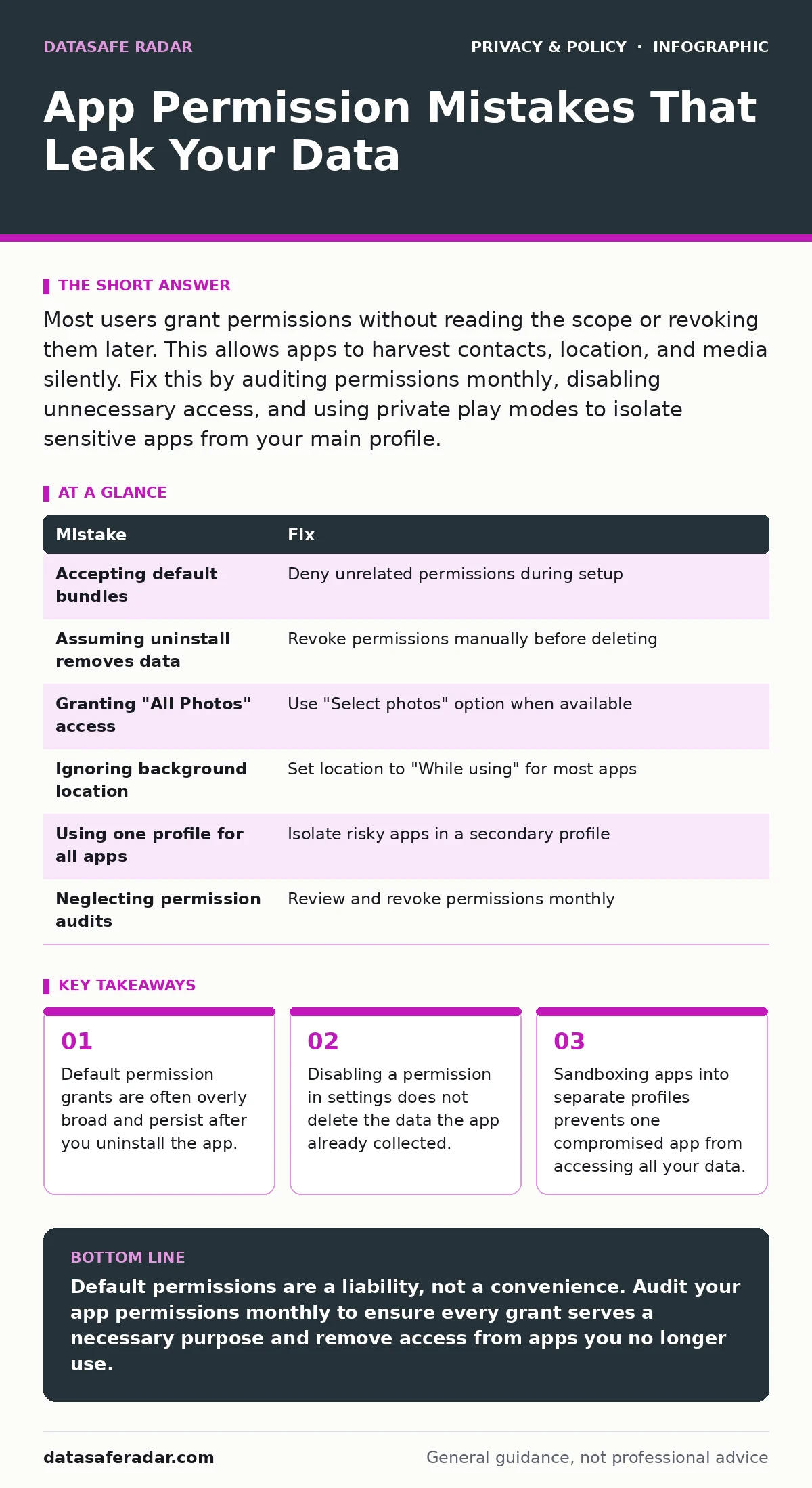
Most users grant permissions without reading the scope or revoking them later. This allows apps to harvest contacts, location, and media silently. Fix this by auditing permissions monthly, disabling unnecessary access, and using private play modes to isolate sensitive apps from your main profile.
Mistake 1: Accepting Default Permission Bundles
When you install a new application, the operating system often presents a series of permission requests. Many users tap "Allow" rapidly to reach the app’s main function. This behavior assumes the request is minimal. It rarely is. Developers often bundle unrelated permissions together to maximize data collection opportunities.
Why it hurts:
A flashlight app does not need access to your microphone or contacts. By accepting the bundle, you create a wide attack surface. If that app suffers a security breach, attackers gain access to data far beyond its stated purpose. You also expose yourself to background tracking, which drains battery and reveals your habits.
The fix:
Read each permission request individually. Deny any request that does not directly enable the core function. For example, a calculator needs no location data. If the app refuses to work without unnecessary access, uninstall it and find an alternative. This practice aligns with the principles of privacy by design, where data minimization is built into the product from the start.
Mistake 2: Assuming Uninstallation Removes Data
Many users believe that deleting an app from their device erases all its permissions and data. This is a fundamental misunderstanding of how mobile operating systems work. Uninstalling an app removes the code and local cache. It does not automatically revoke the permissions the app held while installed.
Why it hurts:
The operating system retains the permission grant in its internal registry. If you reinstall the same app later, it often resumes with the same level of access. More dangerously, the app may have uploaded your data to remote servers before you deleted it. That data persists on the developer’s servers, exposed to potential breaches or insider misuse.
The fix:
Before uninstalling any app that handles sensitive information, go into your system settings and revoke its permissions manually. Then, delete the app. This ensures the permission token is cleared from the system. You should also review the app’s privacy policy to understand its data retention practices. This step is part of broader data privacy hygiene that protects you beyond the device screen.
Mistake 3: Granting "All Photos" Access
Media libraries are a high-value target for data harvesters. When an app requests access to photos, the prompt often offers two choices: "Allow all" or "Deny." Newer operating systems have added a third option: "Select photos." Many users still choose the first option for convenience.
Why it hurts:
Granting full access allows the app to index, copy, and exfiltrate every image on your device. This includes screenshots containing passwords, photos of identification documents, and personal messages. Even if the app claims it only uses images for profile pictures, the capability to access the entire library remains active. This is a form of metadata exposure that can reveal when and where photos were taken.
The fix:
Always choose the limited access option. Select only the specific images the app needs. If the app requires new photos later, the system will prompt you again. This granular control prevents bulk harvesting. It also protects against malicious behavior where an app scans your gallery for sensitive content without your explicit consent for each item.
Mistake 4: Ignoring Background Location Permissions
Location services are critical for navigation and local search. However, many apps request location access "Always," even if they only need it "While using the app." Users often grant the higher level of access because they do not understand the difference.
Why it hurts:
"Always" permission allows the app to track your movements in the background, even when the screen is off. This creates a detailed map of your daily routine, home address, and workplace. Over time, this data can be used to infer sensitive information about your health, political views, or religious practices. It also increases the risk of battery drain and potential interception by network adversaries.
The fix:
Set location permissions to "While using the app" for almost everything. Reserve "Always" only for navigation apps that need to provide directions while you drive. Review your location history settings regularly to ensure no rogue apps are collecting data. This discipline helps you maintain digital privacy rights by limiting the scope of surveillance.
Mistake 5: Using the Same Profile for All Apps
Most users install all their apps on the primary user profile. This means every app has equal access to the same set of permissions, contacts, and files. A banking app, a game, and a shopping app all sit in the same sandbox. This convenience comes with a significant security cost.
Why it hurts:
If a low-security game is compromised, the attacker may gain access to the same storage space as your banking app. While operating systems try to isolate apps, shared permissions and clipboard data can leak information between them. A malicious app can read copied passwords or inject fake data into other applications.
The fix:
Use your device’s multi-user or work profile features to create a separate environment for risky apps. Install games, social media, and unknown utilities in this secondary profile. Keep banking, email, and sensitive tools in the primary profile. This segmentation ensures that a breach in one area does not compromise the entire system. It is a practical application of privacy by design for the end user.
Mistake 6: Neglecting Permission Audits
Permissions accumulate over time. An app that once needed camera access may no longer need it after a feature update. Conversely, an app may request new permissions in a silent update. Most users never revisit their permission settings after the initial setup.
Why it hurts:
Your attack surface grows with every granted permission. Old apps that you no longer use may still hold active permissions. These dormant permissions are easy targets for attackers who look for unused but privileged access points. They also contribute to unnecessary battery consumption and data usage.
The fix:
Schedule a monthly audit of your app permissions. Go into your system settings and review each app’s access list. Revoke any permission that seems unnecessary or belongs to an app you no longer use. This regular maintenance keeps your system clean and reduces the likelihood of accidental data leaks. It is a simple habit that reinforces data privacy best practices.
| Mistake | Fix |
|---|---|
| Accepting default bundles | Deny unrelated permissions during setup |
| Assuming uninstall removes data | Revoke permissions manually before deleting |
| Granting "All Photos" access | Use "Select photos" option when available |
| Ignoring background location | Set location to "While using" for most apps |
| Using one profile for all apps | Isolate risky apps in a secondary profile |
| Neglecting permission audits | Review and revoke permissions monthly |
Key takeaways
- Default permission grants are often overly broad and persist after you uninstall the app.
- Disabling a permission in settings does not delete the data the app already collected.
- Sandboxing apps into separate profiles prevents one compromised app from accessing all your data.
Default permissions are a liability, not a convenience. Audit your app permissions monthly to ensure every grant serves a necessary purpose and remove access from apps you no longer use.
Frequently asked questions
Does turning off location services protect me from all tracking?
No. Apps can still infer your location through IP addresses, Wi-Fi network names, and Bluetooth signals. Location services are just one vector.
Can I revoke permissions for system apps?
Usually no. System apps require specific permissions to function correctly. However, you can often limit their background activity and data usage.
What if an app stops working after I revoke a permission?
The app may rely on that permission for a core feature. If so, uninstall it and find an alternative that respects privacy boundaries.
Do private browsing modes hide my app permissions?
No. Private browsing only affects web activity. App permissions are managed by the operating system and remain active regardless of browser settings.
How this guide was produced: written by the DataSafe Radar editorial team with AI assistance, checked against the public references listed below, and reviewed when the facts change. See our editorial policy or report an error.