Password Manager Best Practices for Secure Identity Protection
Password managers eliminate the need to memorize credentials while creating unique, high-entropy passwords for every account you use online.
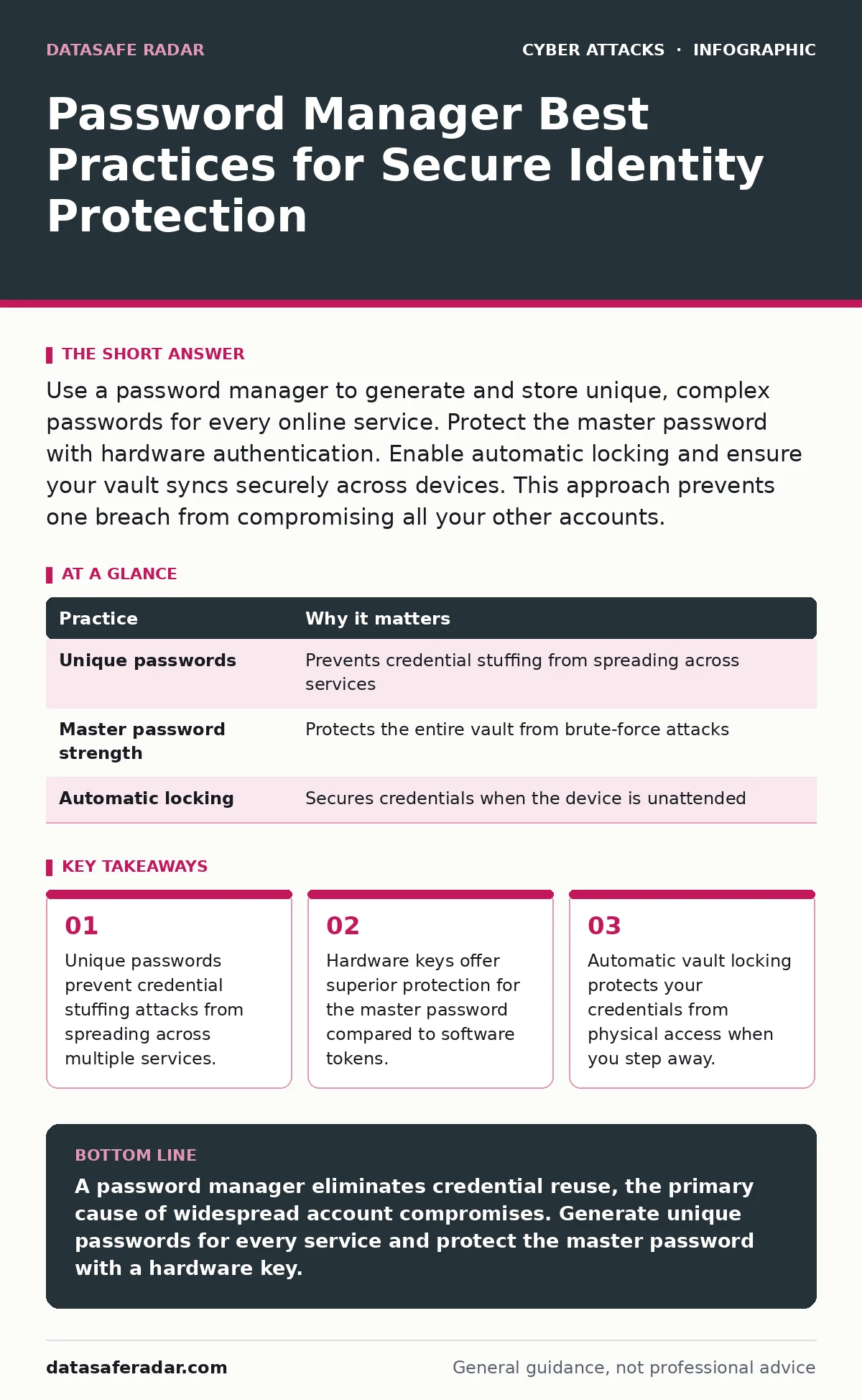
Use a password manager to generate and store unique, complex passwords for every online service. Protect the master password with hardware authentication. Enable automatic locking and ensure your vault syncs securely across devices. This approach prevents one breach from compromising all your other accounts.
Why Password Managers Change the Security Model
Password managers transform identity security by removing human memory as the bottleneck for credential strength. Most users cannot memorize dozens of unique, complex passwords. This limitation forces them to reuse simple passwords across multiple sites. When one site suffers a breach, attackers test those credentials on other platforms. This technique, known as credential stuffing, succeeds because human behavior is predictable and weak.
A password manager generates high-entropy passwords that are impossible to guess or crack via brute force. It stores these credentials in an encrypted vault, accessible only through a single master password. This architecture isolates the risk of any single service compromise. You no longer need to balance security with convenience. The tool handles the complexity, allowing you to focus on protecting the single entry point to your digital life.
1. Use Unique Passwords for Every Account
Reusing passwords creates a single point of failure for your entire digital identity. If you use the same password for your email, banking, and social media, a breach at any one of those services gives attackers access to all of them. Password managers allow you to generate a different, random password for every site. This ensures that a leak from one provider remains contained.
The password manager fills these unique credentials automatically during login. You never see or memorize the actual password. This separation of concerns means you only need to protect the master password. The trade-off is that if you lose access to the vault, you lose access to all accounts. This is why backup procedures are critical.
| Practice | Why it matters |
|---|---|
| Unique passwords | Prevents credential stuffing from spreading across services |
| Master password strength | Protects the entire vault from brute-force attacks |
| Automatic locking | Secures credentials when the device is unattended |
2. Protect the Master Password with Hardware Keys
The master password is the key to your digital kingdom. If an attacker obtains it, they gain access to every credential stored in your vault. Standard two-factor authentication adds a layer of security, but software-based codes can be intercepted or phished. Hardware security keys provide a stronger form of authentication that is resistant to remote attacks.
Hardware keys use public-key cryptography to verify your identity. They require physical presence to authorize access, making remote phishing impossible. Even if an attacker tricks you into visiting a fake login page, the key will not respond because the domain does not match the registered origin. This mechanism adds a significant barrier against account takeover attempts.
3. Enable Automatic Vault Locking
Your password manager vault remains open on your device until you explicitly lock it or the session times out. If you step away from your computer or phone, an attacker with physical access can view or use your stored credentials. Automatic locking closes the vault after a period of inactivity, requiring re-authentication to access it again.
Set the automatic lock timer to a short interval, such as five minutes or less. This balances security with usability. If you work in a public space or a busy office, reduce the interval further. This practice mitigates the risk of shoulder surfing, where an observer watches you type your master password or sees your unlocked screen. It ensures that your credentials are never exposed on an unattended device.
4. Use Offline Backups for Critical Data
Password managers sync data across devices via cloud servers. While convenient, this introduces dependency on the vendor’s infrastructure and internet connectivity. If the service suffers an outage or your account is locked, you may lose access to your credentials. Maintaining an encrypted, offline backup of your vault provides a recovery path independent of the vendor.
Export your vault data regularly and store it on an external drive kept in a secure location. Encrypt the backup file with a strong password before saving it. This step ensures you can restore your credentials even if the primary service becomes unavailable. It also protects against account lockouts due to forgotten master passwords or security incidents affecting the provider.
5. Audit Stored Credentials for Weaknesses
Password managers often include features to analyze the strength of stored passwords. They can identify reused passwords, weak combinations, or those compromised in previous breaches. Regularly reviewing these reports helps you proactively strengthen your security posture. Replace any flagged passwords immediately with new, generated ones.
This audit process is not a one-time task. As you add new accounts or as breaches occur, the strength of your stored credentials changes. Schedule quarterly reviews to ensure your vault remains secure. Some managers integrate with breach databases to alert you if a stored password appears in a known leak. Acting on these alerts prevents attackers from exploiting already-compromised credentials.
6. Disable Autocomplete on Public Computers
Never use a password manager on shared or public computers. These devices may have keyloggers, screen capture malware, or other surveillance tools installed. Even if the password manager is installed locally, the credentials could be extracted from memory or disk. Using a password manager on an untrusted device defeats its primary security purpose.
If you must access an account from a public computer, type the password manually and log out immediately. Do not save the credentials to the local device. Better yet, avoid accessing sensitive accounts from shared devices entirely. Use your personal, trusted devices for all critical logins. This practice minimizes the attack surface and reduces the risk of credential theft in uncontrolled environments.
7. Keep the Software Updated
Password managers, like all software, contain vulnerabilities that need patching. Developers release updates to fix security flaws, improve encryption algorithms, and address compatibility issues. Running an outdated version leaves you exposed to known exploits that attackers can easily target. Enable automatic updates whenever possible to ensure you always have the latest security patches.
Check for updates manually at least once a month, especially if automatic updates are disabled. Review release notes to understand what changes were made. Some updates may introduce new features or change how data is synced. Staying current ensures your vault remains protected against emerging threats and maintains compatibility with your operating system and browsers.
Integrating with Your Security Workflow
Password managers are a core component of identity security, but they do not operate in isolation. They work best when combined with other protective measures. For instance, using web filtering can prevent you from visiting malicious sites that might host fake login pages. Understanding DNS spoofing helps you recognize when you are not actually connected to the service you intend to access.
Similarly, being aware of vishing attempts protects you from attackers trying to extract your master password via phone calls. If you suspect a breach, your incident response plans should include steps to rotate credentials stored in your password manager. These complementary practices create a layered defense that is harder to bypass than any single tool.
Key takeaways
- Unique passwords prevent credential stuffing attacks from spreading across multiple services.
- Hardware keys offer superior protection for the master password compared to software tokens.
- Automatic vault locking protects your credentials from physical access when you step away.
A password manager eliminates credential reuse, the primary cause of widespread account compromises. Generate unique passwords for every service and protect the master password with a hardware key.
Frequently asked questions
Is it safe to store all my passwords in one place?
Yes, because the vault is encrypted locally before syncing. The provider cannot read your credentials. A single, strong master password protected by hardware authentication is more secure than multiple weak passwords stored in your browser or memory.
What happens if I forget my master password?
Most password managers cannot recover it because they do not store it. You must rely on encrypted backups you created previously. This is why maintaining offline backups is critical. Without a backup, your stored credentials may be permanently inaccessible.
Can password managers be hacked?
Like any software, they can have vulnerabilities, but encrypted vaults are extremely resistant to remote attacks. The main risk is the master password being stolen via phishing or malware. Using hardware keys and keeping software updated mitigates these risks significantly.
Do I need a password manager for every device?
You need access to your vault on every device you use for sensitive logins. Most managers offer apps for desktops, phones, and tablets. Ensure each device uses the same encrypted vault. This synchronization ensures you always have access to your unique, strong passwords.
How this guide was produced: written by the DataSafe Radar editorial team with AI assistance, checked against the public references listed below, and reviewed when the facts change. See our editorial policy or report an error.