Malicious Documents Prevention Checklist for Secure Computing
Most document attacks succeed because users enable interactive content before verifying the file source, allowing hidden macros to execute before any security scan completes.
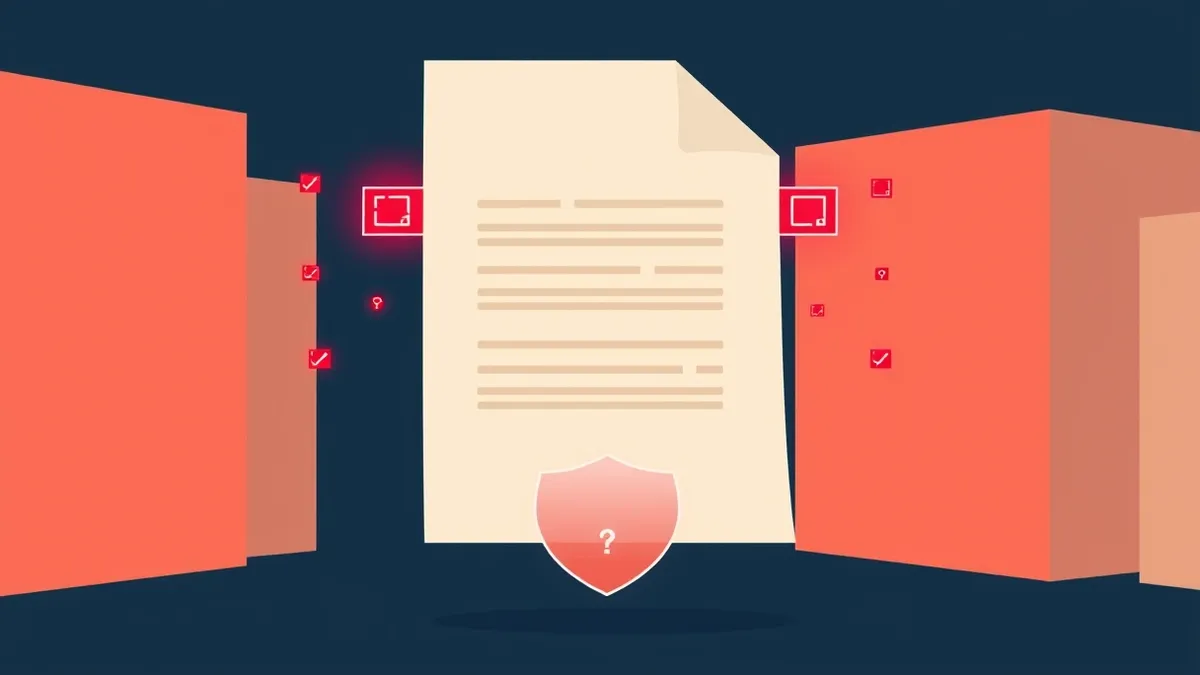
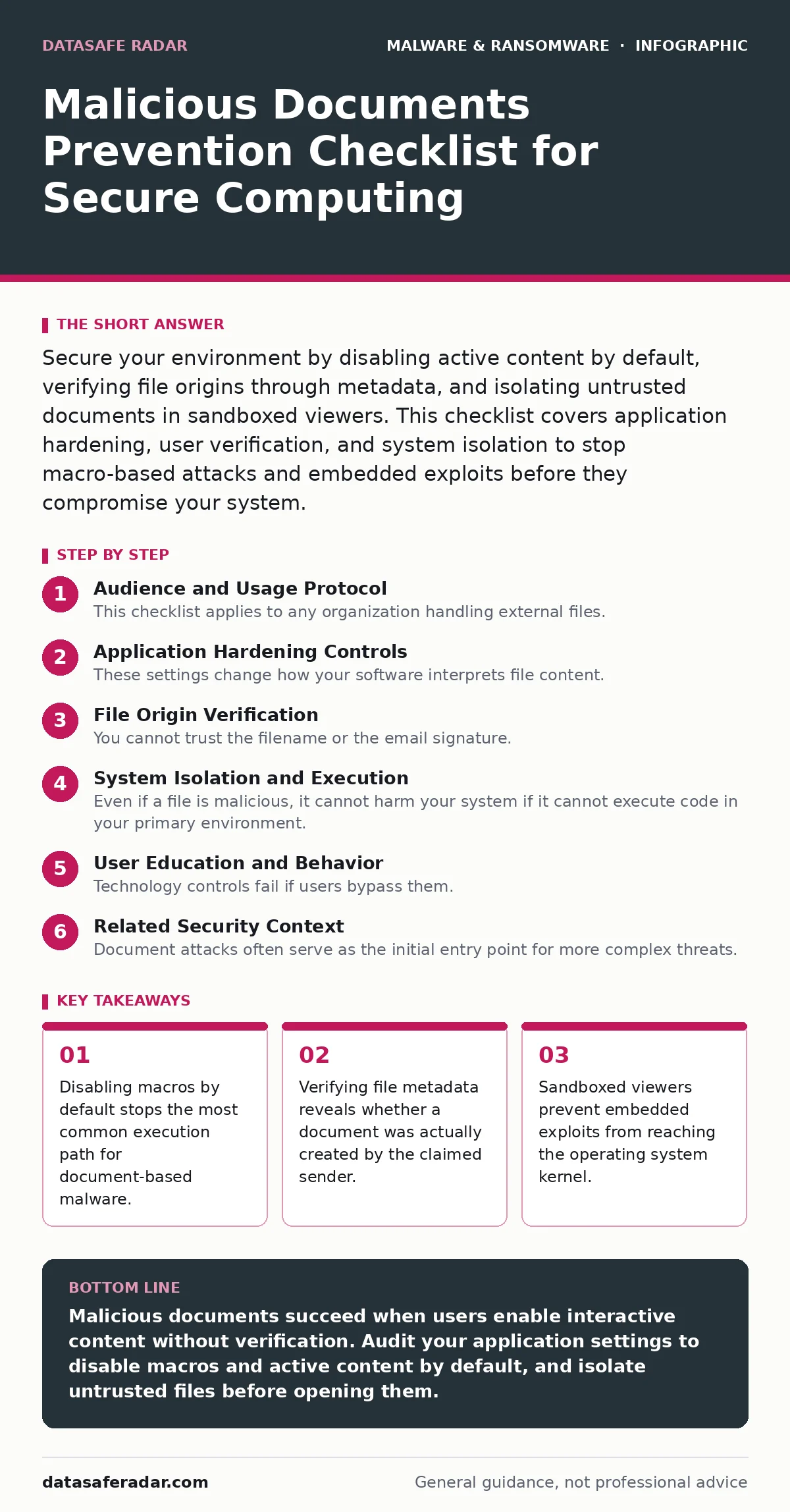
Secure your environment by disabling active content by default, verifying file origins through metadata, and isolating untrusted documents in sandboxed viewers. This checklist covers application hardening, user verification, and system isolation to stop macro-based attacks and embedded exploits before they compromise your system.
Audience and Usage Protocol
This checklist applies to any organization handling external files. You use this list to audit your current document handling policies. Do not treat these items as optional suggestions. Treat them as mandatory controls for any system that processes untrusted data. The goal is to reduce the attack surface before a file opens. You must verify each item against your actual configuration, not your intended configuration.
Application Hardening Controls
These settings change how your software interprets file content. Default settings often prioritize convenience over security. You must reverse that priority.
- Disable all macros by default: Macros contain executable code that runs immediately upon opening, bypassing many traditional antivirus signatures.
- Block ActiveX controls in viewers: ActiveX allows scripts to interact with the local system, creating a direct path for remote code execution.
- Restrict VBA project access: Visual Basic for Applications lets attackers modify the document structure to hide malicious payloads from inspection tools.
- Enforce protected view for external files: Protected view opens documents in a read-only sandbox, preventing any code from touching the host system.
- Disable auto-open for specific file types: Auto-open features trigger execution without user interaction, making social engineering irrelevant to the attacker.
File Origin Verification
You cannot trust the filename or the email signature. Attackers easily spoof display names and headers. You must verify the file itself.
- Check digital signatures on macros: A valid signature proves the code was signed by a known publisher, though it does not guarantee the code is benign.
- Inspect file metadata for creation tools: Metadata reveals the actual software used to create the file, exposing mismatches between claimed and real origins.
- Verify hash values against known goods: Comparing cryptographic hashes ensures the file has not been altered in transit or stored on a compromised server.
- Validate sender identity via out-of-band channels: Confirming the request through a separate communication method prevents business email compromise attacks.
- Scan for embedded objects before opening: Embedded objects like OLE containers can hold executable payloads that trigger when the host application loads them.
System Isolation and Execution
Even if a file is malicious, it cannot harm your system if it cannot execute code in your primary environment. Isolation breaks the chain of infection.
- Use dedicated document viewers for untrusted files: Lightweight viewers lack the complex rendering engines that attackers exploit to trigger buffer overflows.
- Enable application whitelisting for office suites: Whitelisting ensures only approved versions of software can run, blocking unauthorized macro engines or plugins.
- Restrict network access for document apps: Preventing document applications from initiating outbound connections stops malware from phoning home for further instructions.
- Implement user-controlled folder isolation: Storing untrusted files in a dedicated, restricted folder allows you to apply stricter security policies to that specific location.
- Disable clipboard sharing between host and guest: If you use virtual machines for testing, disabling clipboard sharing prevents data exfiltration from the isolated environment.
User Education and Behavior
Technology controls fail if users bypass them. You must train users to recognize the subtle signs of a malicious document.
- Train users to spot warning banners: Modern office suites display prominent warnings for active content; ignoring these warnings is the primary cause of infection.
- Teach users to verify unexpected attachments: Unsolicited files are the most likely to contain malware, regardless of how professional the email appears.
- Instruct users to report suspicious files: Early reporting allows security teams to analyze the threat and update detection rules across the organization.
- Demonstrate how to check file extensions: Attackers often use double extensions like .pdf.exe to trick users into running an executable instead of a document.
- Encourage skepticism of urgent requests: Social engineering relies on urgency to bypass rational thought; slowing down allows users to verify the request properly.
Related Security Context
Document attacks often serve as the initial entry point for more complex threats. Understanding this context helps you prioritize these controls.
- Review real-time protection settings: Ensure your endpoint security monitors file creation and modification events in real time.
- Check USB device control policies: Removable media can introduce malicious documents that bypass network perimeter defenses entirely.
- Understand malware obfuscation techniques: Attackers use packing and encryption to hide the true nature of macro code from static analysis.
- Monitor for DLL sideloading risks: Malicious documents may drop files that hijack legitimate application loading processes to execute code.
- Prepare for ransomware scenarios: Document malware is a common precursor to ransomware deployment, encrypting files after initial access is gained.
- Audit for firmware malware risks: While rare, persistent threats may reside in firmware, surviving document-level cleanups and system reinstalls.
- Plan for zero-day malware events: New document vulnerabilities may exist before patches are available; isolation is your primary defense here.
- Scan for hidden backdoors: Some document malware installs persistent backdoors that remain active even after the document is deleted.
Maintenance and Review
Security is not a one-time configuration. You must review these settings regularly. Software updates often reset security defaults to more permissive states. You must re-verify your hardening after every major application update. Document your approved exceptions. If you cannot justify an exception, remove it. The goal is to minimize the number of trusted sources.
Key takeaways
- Disabling macros by default stops the most common execution path for document-based malware.
- Verifying file metadata reveals whether a document was actually created by the claimed sender.
- Sandboxed viewers prevent embedded exploits from reaching the operating system kernel.
Malicious documents succeed when users enable interactive content without verification. Audit your application settings to disable macros and active content by default, and isolate untrusted files before opening them.
Frequently asked questions
Can antivirus software detect all malicious documents?
No, antivirus relies on known signatures and heuristics. New or heavily obfuscated macros often bypass detection until behavior-based analysis catches the execution attempt.
Is it safe to open a document in a web browser?
Web browsers offer some isolation through sandboxing, but they still render content. If the document contains a client-side exploit, the browser itself can be compromised.
Do digital signatures guarantee a document is safe?
No, a digital signature only verifies the identity of the signer and that the file has not been altered. A trusted signer could still distribute malicious code.
Should I disable macros for all users?
You should disable macros by default for all users and only enable them for specific, trusted files or users who have a verified business need for automation.
How this guide was produced: written by the DataSafe Radar editorial team with AI assistance, checked against the public references listed below, and reviewed when the facts change. See our editorial policy or report an error.