How to Detect Email Tracking Pixels in Logs and Headers
Email tracking pixels hide in standard HTTP requests, revealing read status and device details without requiring any active script execution or user interaction.
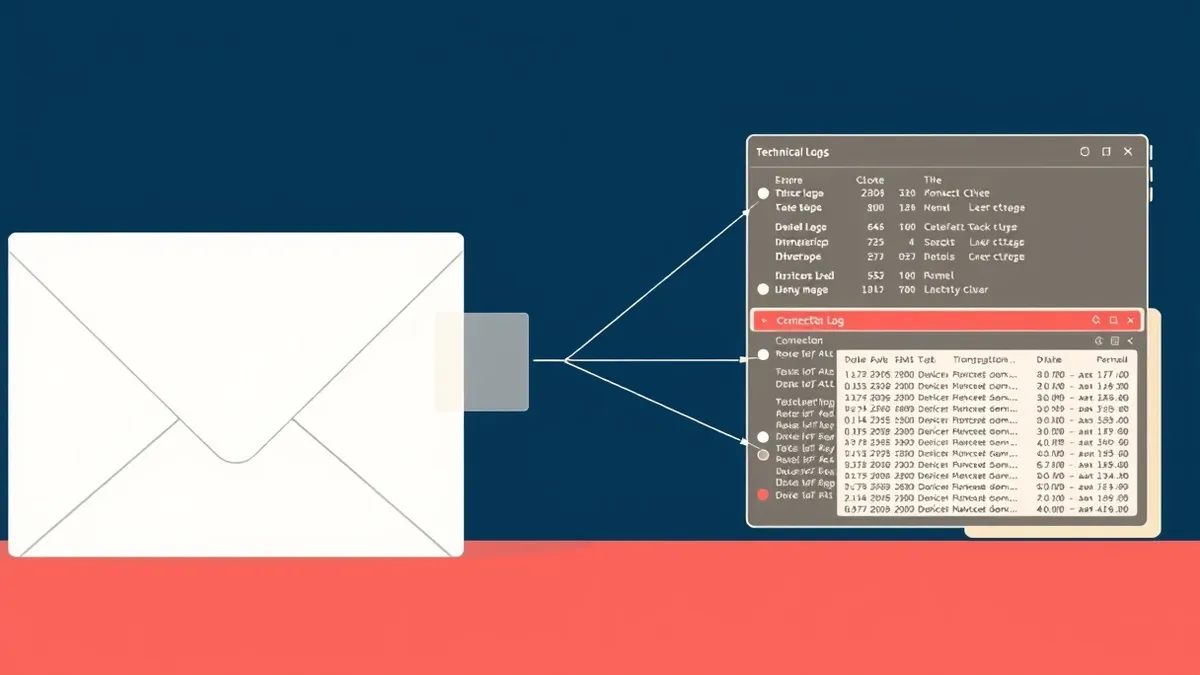
Inspect raw email headers for single-pixel image tags pointing to external domains. Check server logs for sequential GET requests on those URLs. Correlate these requests with user activity to identify silent data exfiltration attempts or marketing surveillance.
Anatomy of a Silent Beacon
A tracking pixel is a tiny, often invisible image embedded in an email. It usually measures one by one pixel. When you open the email, your client contacts the server hosting that image. This contact sends data back to the sender. The data includes your IP address, the time you opened the message, and the user-agent string of your device. This mechanism relies on the standard HTTP GET request. It does not require JavaScript to run. It does not require you to click a link. The act of rendering the visual content is enough to trigger the data transfer.
Decoding Raw Email Headers
The first place to look is the raw message source. Most email clients hide this from the default view. You must request the full headers or source code. Look for an HTML tag that references an image file. The file extension is often .gif, .png, or .jpg. The filename might be generic, like "track.gif" or "open.png". Sometimes the filename contains encoded data, such as a unique identifier for the recipient. The URL points to a domain that is not part of your organization. If you see a <img> tag with a src attribute pointing to an external IP or domain, you have found a candidate for a tracking pixel.
Analyzing DNS Query Logs
Your network DNS logs provide a clearer signal than email headers alone. When an email client attempts to load a tracking pixel, it must first resolve the domain name of the image host. This generates a DNS query. You can filter your logs for queries to domains known for hosting tracking resources. These domains often have high entropy in their names, making them look random.
They may also be newly registered or have little web presence beyond serving small files. If you see a spike in DNS queries for a specific external domain shortly after a known email campaign, you have evidence of tracking activity. This method works even if the email client blocks the actual image download. The DNS request still happens before the block occurs.
Inspecting Web Proxy and Firewall Logs
If your organization uses a web proxy or firewall, these devices record HTTP traffic. Tracking pixels generate standard GET requests. These requests often lack the complexity of normal web browsing. They request a single small file. They do not load supporting scripts, stylesheets, or other assets.
You can create rules to flag HTTP GET requests that return a content type of image/gif or image/png and have a very small file size. Look for requests that originate from internal workstations and terminate at external IPs. The user-agent string in these requests will identify the email client, such as Outlook or Thunderbird. This helps distinguish tracking pixels from normal web browsing behavior.
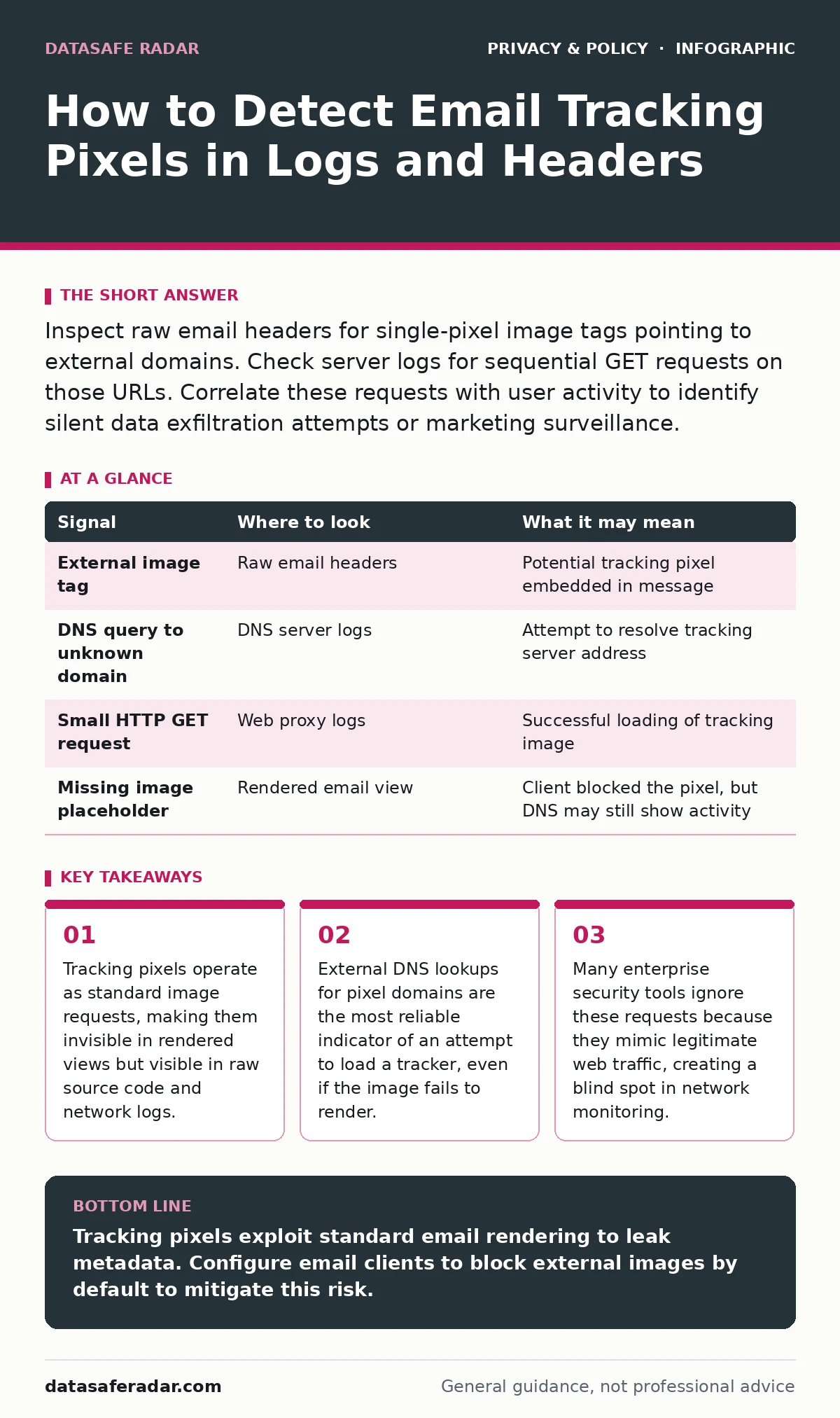
| Signal | Where to look | What it may mean |
|---|---|---|
| External image tag | Raw email headers | Potential tracking pixel embedded in message |
| DNS query to unknown domain | DNS server logs | Attempt to resolve tracking server address |
| Small HTTP GET request | Web proxy logs | Successful loading of tracking image |
| Missing image placeholder | Rendered email view | Client blocked the pixel, but DNS may still show activity |
Identifying Behavioral Patterns
Tracking pixels often behave differently than legitimate images. They are usually hosted on content delivery networks or specialized marketing platforms. These platforms serve the same pixel to thousands of recipients. The URL often contains a unique identifier for each recipient. This allows the sender to know exactly who opened the email. You may notice patterns in your logs where many users request images from the same external host within a short time window. This clustering suggests a coordinated campaign. It is not typical for individual users to load images from obscure external domains in rapid succession.
See also: How to Use Email Aliases to Protect Your Primary Inbox · Email Encryption: Real Benefits and Hidden Limits
Common Blind Spots in Detection
Many security solutions fail to detect tracking pixels because they mimic benign traffic. Firewalls allow HTTP traffic by default. Email gateways scan for malware and spam, not for metadata leakage. A tracking pixel is not malware. It does not execute code on your machine. It simply requests a file. This makes it invisible to traditional antivirus and intrusion detection systems. Another blind spot is mobile devices. Mobile email apps often load images by default. They may also use different DNS resolvers than your corporate network. This means tracking activity from mobile devices may bypass your central logging infrastructure entirely.
Mitigating the Visibility Footprint
You can reduce the data sent by tracking pixels, but you cannot eliminate it completely if you view the email. Configuring your email client to block external images is the most effective step. This prevents the HTTP request from being sent. However, this breaks the visual experience of legitimate emails. Users may miss important graphics or signatures. You must educate users to manually enable images for trusted senders. This creates a trade-off between privacy and convenience. For high-security environments, you may need to enforce policies that strip HTML from incoming emails. This removes the pixel entirely but also removes formatting and images.
Integrating with Secure DNS Strategies
To improve visibility into tracking attempts, consider using secure DNS. This protocol encrypts DNS queries between your device and the resolver. While this does not stop the tracking, it prevents intermediate attackers from seeing which domains you are querying. It also ensures that your DNS logs are accurate and have not been tampered with. This is particularly useful if you suspect that your DNS traffic is being intercepted or modified. For more information on protecting your DNS traffic, see the guide on secure DNS. Additionally, understanding how third-party cookies work can help you grasp the broader context of web tracking, as many pixel hosts also set cookies for cross-site tracking.
Key takeaways
- Tracking pixels operate as standard image requests, making them invisible in rendered views but visible in raw source code and network logs.
- External DNS lookups for pixel domains are the most reliable indicator of an attempt to load a tracker, even if the image fails to render.
- Many enterprise security tools ignore these requests because they mimic legitimate web traffic, creating a blind spot in network monitoring.
Tracking pixels exploit standard email rendering to leak metadata. Configure email clients to block external images by default to mitigate this risk.
Frequently asked questions
Can I remove a tracking pixel from an email after receiving it?
No, the pixel is embedded in the message content. You can choose not to load it by blocking external images, but you cannot edit the raw HTML of a received email reliably.
Do tracking pixels work in plain text emails?
No, plain text emails do not support HTML or images. Tracking pixels require an HTML structure to embed the image tag.
Is it legal to use tracking pixels in emails?
Legality varies by jurisdiction. Some regions require consent for tracking. Others allow it for marketing purposes. You must comply with local privacy laws.
Can tracking pixels install malware on my device?
The pixel itself does not install malware. It is an image request. However, the server hosting the pixel could potentially serve malicious content if the email client has vulnerabilities.
How this guide was produced: written by the DataSafe Radar editorial team with AI assistance, checked against the public references listed below, and reviewed when the facts change. See our editorial policy or report an error.