Implement Secure DNS: A Practical Rollout Plan for Your Network
Most organizations assume their DNS traffic is encrypted, but standard queries remain visible to any observer on the network path, exposing your browsing habits and internal infrastructure maps.

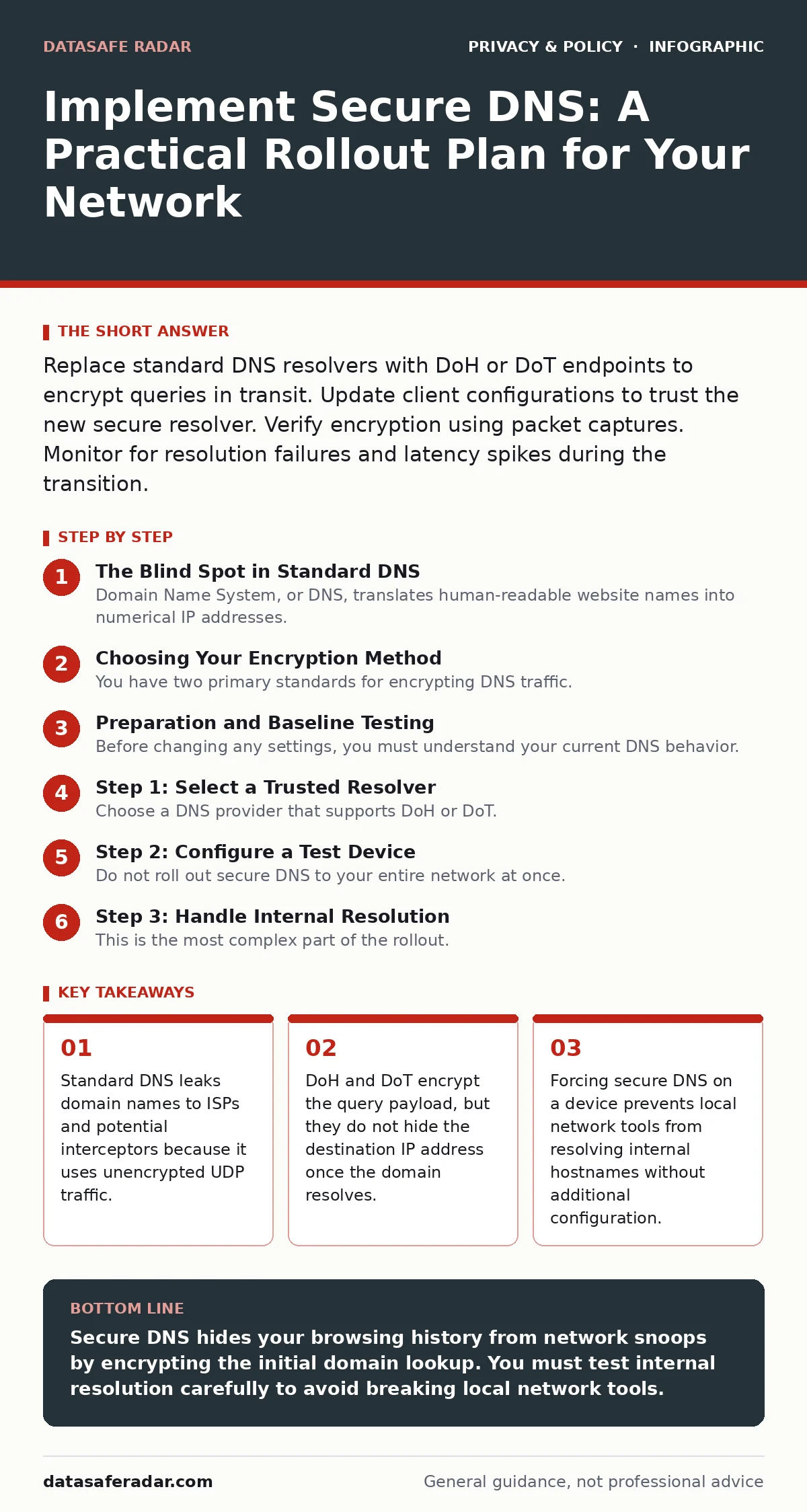
Replace standard DNS resolvers with DoH or DoT endpoints to encrypt queries in transit. Update client configurations to trust the new secure resolver. Verify encryption using packet captures. Monitor for resolution failures and latency spikes during the transition.
The Blind Spot in Standard DNS
Domain Name System, or DNS, translates human-readable website names into numerical IP addresses. This translation is the first step in almost every internet connection. For decades, this protocol operated without encryption. It used User Datagram Protocol, or UDP, which sends data without establishing a secure connection. This design choice was made for speed, not privacy.
When you type a website address, your device sends a query to a DNS resolver. That query travels through multiple networks before reaching the resolver. Every router, switch, and internet service provider along that path can read the domain name you are requesting. This creates a detailed map of your online activity. You might think your web traffic is private, but the initial DNS request often tells an observer exactly where you are going before the secure connection even begins.
Choosing Your Encryption Method
You have two primary standards for encrypting DNS traffic. DNS over HTTPS, or DoH, wraps DNS queries inside standard HTTPS traffic. This makes DNS look like regular web browsing. It uses port 443, which is almost always allowed by firewalls. This method is flexible and works well in restrictive network environments.
DNS over TLS, or DoT, uses a dedicated port, usually 853, and establishes a secure TLS tunnel. This method is simpler to configure on some operating systems. It separates DNS traffic from general web traffic, which can help with network management. However, some corporate firewalls block non-standard ports, which can break connectivity if you choose DoT.
Both methods hide the content of your DNS queries from intermediaries. They do not hide the fact that you are making a DNS request. They also do not hide the IP address you connect to after the domain resolves. For a deeper look at how applications share data, see the guide on app permission management.
Preparation and Baseline Testing
Before changing any settings, you must understand your current DNS behavior. You need to know which resolver your devices currently use. This is often your internet service provider's default server. You should also identify any internal DNS servers that handle local network names. These are critical for finding printers, file shares, and internal websites.
Create a baseline of your current DNS latency and resolution success rates. Use command-line tools to measure how long it takes to resolve common domains. Record these numbers. You will need them to compare performance after switching to secure DNS. If your baseline performance is poor, switching resolvers might improve speed, or it might worsen it if the new resolver is geographically distant.
Step 1: Select a Trusted Resolver
Choose a DNS provider that supports DoH or DoT. Do not use a random public server. Select a provider with a clear privacy policy and a strong reputation for security. The provider acts as a trusted intermediary. They will see your queries, so you must trust them more than your internet service provider or the network administrators on your local Wi-Fi.
Verify that the provider supports the encryption method you chose. Some providers only support DoH, while others support both. Check their documentation for the exact endpoint URLs or server addresses. Ensure they offer forward secrecy, which means each session uses a unique encryption key. This prevents long-term decryption of your traffic if a key is compromised later.
Step 2: Configure a Test Device
Do not roll out secure DNS to your entire network at once. Start with a single test device. This could be your personal laptop or a dedicated testing machine. Configure the operating system to use the new secure DNS endpoint. Most modern operating systems have built-in settings for this. If your device is older, you may need to use a third-party application or a firewall rule to redirect DNS traffic.
After configuring the device, open a command prompt or terminal. Use the ping command to resolve a few domain names. Check if the resolution succeeds. Then, use a packet capture tool to inspect the network traffic. You should see encrypted data flowing to port 443 for DoH or port 853 for DoT. You should not see readable domain names in the packet payload. For more on protecting your data in transit, review the guide on encrypted cloud storage.
See also: 7 Mistakes That Cause Subdomain Takeover and How to Fix Them · Private file sharing services explained for secure transfers
Step 3: Handle Internal Resolution
This is the most complex part of the rollout. Secure DNS resolvers usually do not know about your local network names. If your device is forced to use the public secure resolver, it will fail to find your local printer or internal server. This breaks productivity.
You have two options. First, you can split your DNS view. Configure the device to use the secure resolver for public internet domains and your local internal DNS server for local domains. This requires careful configuration to ensure the split is secure and does not leak local names. Second, you can use a local proxy that forwards public queries to the secure resolver and handles local queries itself. This keeps the device configuration simple but adds complexity to your server infrastructure.
Step 4: Verify and Monitor
Once the test device is working correctly, expand the rollout to a small group of users. Monitor for connectivity issues. Users may report that certain internal tools do not work. This is likely due to the internal resolution issue mentioned above. Check the DNS logs on your resolvers for errors. Look for high latency or timeouts.
Use a checklist to verify the implementation:
- DNS queries are encrypted in transit.
- Public domain resolution works correctly.
- Internal domain resolution works correctly.
- No significant increase in DNS latency.
- Users cannot bypass the secure resolver using local hosts files.
Upkeep and Edge Cases
Secure DNS is not a set-and-forget solution. You must update your configurations if your chosen resolver changes its endpoints or security policies. Monitor for new vulnerabilities in the DoH or DoT protocols. While these standards are secure, implementation bugs can occur.
Be aware that some applications do not respect system DNS settings. They may use their own hard-coded DNS servers. This bypasses your secure configuration. You may need to use network-level filtering to force all DNS traffic through your secure resolver. This is more complex but ensures consistency. For context on how data is shared across services, see the guide on data privacy.
What Secure DNS Does Not Do
It is vital to understand the limits of this technology. Secure DNS hides the domain name you are requesting from network observers. It does not hide the IP address you connect to. Once the domain resolves, your device connects to that IP address in plain sight. Network observers can still see which servers you are talking to.
Secure DNS also does not protect you from malware or phishing. It only secures the translation step. If you type a typo in a URL, secure DNS will still resolve it to the wrong address. If you visit a malicious site, secure DNS will not stop you. It is one layer of defense, not a complete solution. For a broader view of online tracking, see the guide on third-party cookies.
Key takeaways
- Standard DNS leaks domain names to ISPs and potential interceptors because it uses unencrypted UDP traffic.
- DoH and DoT encrypt the query payload, but they do not hide the destination IP address once the domain resolves.
- Forcing secure DNS on a device prevents local network tools from resolving internal hostnames without additional configuration.
Secure DNS hides your browsing history from network snoops by encrypting the initial domain lookup. You must test internal resolution carefully to avoid breaking local network tools.
Frequently asked questions
Does secure DNS hide my IP address?
No, it only hides the domain names you request. The final IP address you connect to remains visible to network observers.
Can my employer block secure DNS?
Yes, they can block the specific ports or URLs used by DoH and DoT, forcing you to use their internal DNS servers.
Does secure DNS work with IPv6?
Yes, both DoH and DoT support IPv6 and function identically to their IPv4 counterparts.
Is DoH faster than standard DNS?
It can be, because it caches responses and avoids ISP throttling, but it may add slight overhead due to encryption processing.
How this guide was produced: written by the DataSafe Radar editorial team with AI assistance, checked against the public references listed below, and reviewed when the facts change. See our editorial policy or report an error.