How to Remove Adware: A Step-by-Step Cleanup Plan
Adware often hides inside legitimate software bundles, meaning deleting the visible app leaves the tracking components and browser redirects intact on your system.

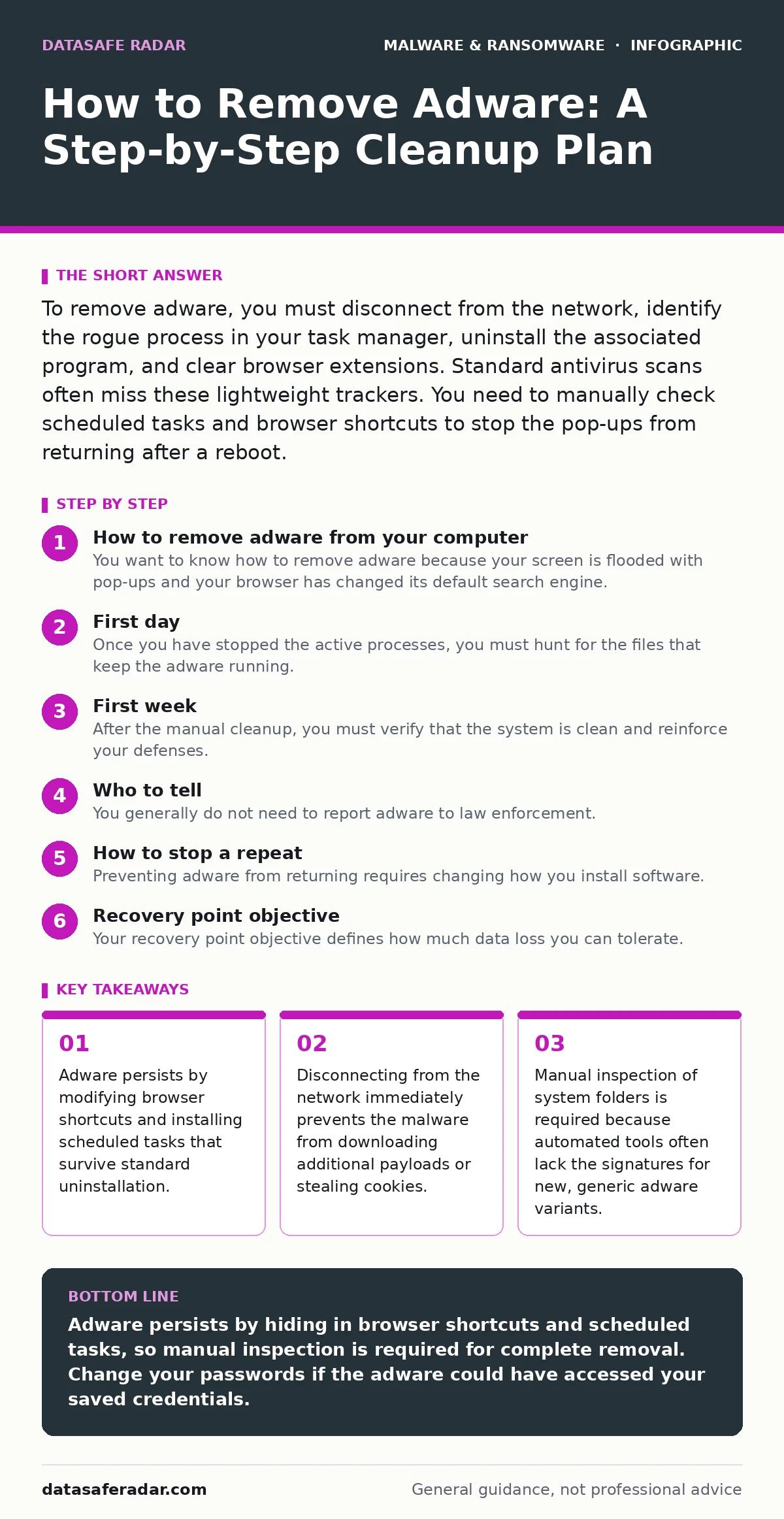
To remove adware, you must disconnect from the network, identify the rogue process in your task manager, uninstall the associated program, and clear browser extensions. Standard antivirus scans often miss these lightweight trackers. You need to manually check scheduled tasks and browser shortcuts to stop the pop-ups from returning after a reboot.
How to remove adware from your computer
You want to know how to remove adware because your screen is flooded with pop-ups and your browser has changed its default search engine. Adware is software designed to generate advertising revenue, often by redirecting your web traffic or injecting ads into pages. It is not always malicious in the sense of stealing credit cards, but it degrades performance and privacy. The removal process requires patience because adware developers use techniques similar to those used by more dangerous threats, such as DLL sideloading, to persist on your system even after you think you have deleted it.
First hour
Your first goal is to stop the adware from communicating with its command server. Adware often uses your internet connection to fetch new ad lists or send your browsing data to a third party. By cutting the connection, you freeze the threat in place. This containment step is critical because it stops the bleeding before you begin the messy work of extraction.
- Disconnect from the internet. Unplug the Ethernet cable or turn off Wi-Fi on your device.
- Open your Task Manager. Look for processes with high CPU or memory usage that have generic or misspelled names.
- End the suspicious tasks. Right-click the process and select "End Task".
- Check your browser extensions. Remove any extension you do not recognize or remember installing.
- Uninstall suspicious programs. Go to your system settings and remove any recently installed software that matches the adware name.
First day
Once you have stopped the active processes, you must hunt for the files that keep the adware running. Adware often installs multiple copies of itself in different folders. If you delete one copy, another copy restarts the program. You need to look in the AppData folder, which stores user-specific data for applications. This is a common hiding spot because many users do not look here.
You must also check your browser shortcuts. Adware modifies the target path of your browser icon to include a URL. This means every time you click the icon, the browser opens and visits a specific advertising site first. Even if you delete the adware program, the shortcut remains, causing the problem to appear again. You need to right-click your browser shortcut, select Properties, and look at the Target field. Delete any URL that appears after the closing quote of the executable path.
Another hidden persistence mechanism is the scheduled task. Adware creates a task that runs the malicious script at regular intervals or at system startup. Open the Task Scheduler and look for tasks with random names or those set to run a script from a temporary folder. Disable these tasks and delete them. This step is often skipped by casual users, leading to the frustration of seeing the adware return days later.
First week
After the manual cleanup, you must verify that the system is clean and reinforce your defenses. Adware often acts as a beacon, indicating that your security hygiene may be weak elsewhere. You should run a full scan using Microsoft Defender Antivirus or another reputable security tool. While these tools may not have caught the initial infection, they can identify secondary payloads that the adware may have downloaded.
Review your browser settings. Reset your homepage, default search engine, and new tab page to their original values. Adware loves to change these settings to force you to use a search partner that pays them. Clear your browser cache and cookies. This removes any tracking data the adware collected during its time on your machine. It also ensures that no cached scripts remain that could trigger the adware behavior.
Who to tell
You generally do not need to report adware to law enforcement. Unlike ransomware or identity theft, adware is usually a nuisance rather than a criminal act with named victims. However, if the adware installed a keylogger or stole passwords, you must treat this as a data breach. Change your passwords immediately. Start with your email account, then move to banking and social media. Use a clean device to change these passwords if you are unsure your computer is fully clean.
If you are on a corporate network, tell your IT department. Adware can sometimes be a precursor to more serious threats, such as backdoors that allow attackers to move laterally within your network. Even if it is just adware, it indicates a user clicked on something they should not have. Your IT team needs to know to investigate if other machines are affected.
How to stop a repeat
Preventing adware from returning requires changing how you install software. Most adware enters your system through software bundles. When you download free software, the installer often includes checkboxes for additional programs. You must read every screen during installation. Select "Custom" or "Advanced" installation options instead of "Express" or "Next". This allows you to uncheck the boxes for toolbars, search protectors, and other unwanted software.
Be wary of malicious documents. Some adware is distributed through PDFs or Word documents that exploit vulnerabilities in your reader software. Keep your applications updated. While zero-day malware is rare, vulnerabilities in common software are frequently patched. Updating closes these doors.
Enable USB device control if you share devices. Adware can spread via removable drives. Configuring your system to block autorun on USB devices prevents executable files from running automatically when you plug in a drive. This adds a layer of friction that stops casual infections.
Recovery point objective
Your recovery point objective defines how much data loss you can tolerate. If you cannot remove the adware, you must restore your system to a previous state. System Restore points can help, but adware often deletes these points to prevent recovery. If you do not have backups, you are in a difficult position.
Imagine your system is so cluttered with adware components that manual removal is impossible. In this case, reinstalling the operating system is the most reliable solution. It wipes everything clean. Your recovery point objective should dictate how often you back up your data. If you back up daily, you lose very little. If you back up monthly, you may lose significant work. Ensure your backups are stored offline to prevent them from being infected.
Fileless malware considerations
Some modern adware operates as fileless malware. It runs entirely in memory and does not write files to the disk. This makes it harder to detect with traditional antivirus scanners. If you suspect fileless adware, look for unusual PowerShell or scripting host activity in your Task Manager. These tools are legitimate but often abused by adware to execute commands without leaving a trace.
Disabling unnecessary scripts in your browser can help. Some adware relies on JavaScript to display ads. While you cannot disable all JavaScript, you can use browser settings to block scripts on untrusted sites. This reduces the attack surface. It is a trade-off, as some websites may not function correctly, but it adds a layer of protection against drive-by adware infections.
Final verification
You must verify that the adware is gone before reconnecting to the internet. Monitor your system for a few days. Watch for new pop-ups, changes in your homepage, or slow performance. If any of these symptoms return, the adware has persisted. You may need to repeat the manual cleanup steps or consider a full system reinstall.
Adware removal is a process of elimination. You remove the visible parts, then hunt for the hidden parts. It requires attention to detail. By following these steps, you ensure that your system is clean and that you understand how the infection occurred. This knowledge helps you prevent future infections.
Key takeaways
- Adware persists by modifying browser shortcuts and installing scheduled tasks that survive standard uninstallation.
- Disconnecting from the network immediately prevents the malware from downloading additional payloads or stealing cookies.
- Manual inspection of system folders is required because automated tools often lack the signatures for new, generic adware variants.
Adware persists by hiding in browser shortcuts and scheduled tasks, so manual inspection is required for complete removal. Change your passwords if the adware could have accessed your saved credentials.
Frequently asked questions
Can adware delete my files?
Standard adware does not delete files, as its goal is to keep your system running to display ads. However, some adware bundles may include other malware that can damage your data.
Does disconnecting from the internet remove adware?
No, disconnecting only stops the adware from communicating with its server. You must still uninstall the software and clean up the files manually.
Is adware the same as a virus?
Adware is a type of malware, but it is distinct from a virus. A virus replicates itself, while adware primarily displays advertisements and tracks your behavior.
How do I know if my passwords were stolen?
If the adware included a keylogger or browser extension that accessed your saved passwords, you must assume they are compromised. Change them immediately on a clean device.
How this guide was produced: written by the DataSafe Radar editorial team with AI assistance, checked against the public references listed below, and reviewed when the facts change. See our editorial policy or report an error.